
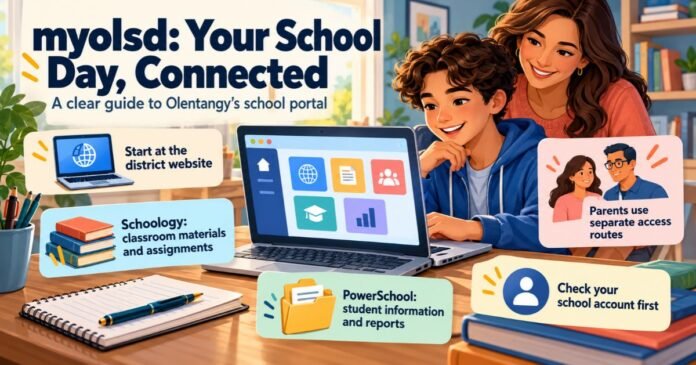

Getting ready for homework should begin with the assignment, but a confusing login screen can bring everything to a halt. A forgotten password, the wrong account or an unfamiliar school application can turn a simple task into a frustrating evening.
For students in Olentangy Local School District, myolsd is a central starting point for accessing school applications. The district calls the service myOLSD and provides access through ClassLink LaunchPad. Students can find the portal through the district website rather than searching for individual learning tools each time they need them.
However, reaching the dashboard is only the first step. Families also need to understand where classroom materials belong, which services hold student information and how parent access differs from student access.
Once those distinctions are clear, the system becomes much easier to navigate. This guide explains how to reach the official portal, understand the main applications and handle common sign-in problems. It also covers practical habits that can help students stay organised and avoid account confusion on shared devices.
How to Access the myolsd Student Portal
The safest starting point is the official Olentangy Local School District website. Its Students section includes a portal entry that takes users towards the district’s ClassLink sign-in page.
Using this route helps avoid confusion with similarly named websites or unofficial pages that appear in search results.
Follow the Official Sign-In Process
To begin:
- Open the district’s official website.
- Go to the Students section.
- Select myOLSD Portal.
- Follow the sign-in instructions using your school-provided account.
- Choose the application you need from the dashboard.
The district’s digital resources guidance recommends bookmarking the portal on personal computers and tablets. Saving the verified destination makes future visits quicker and removes the need to repeat a web search.
Your school supplies your account information. If you haven’t received your credentials, contact the school through its official support process rather than trying to create an unrelated account.
Once signed in, look for the tool your teacher has asked you to use. The available resources and their use can vary by school, grade and teacher, so another student’s dashboard may not match your own.
Understanding the Main School Applications
The portal brings access together, but the applications behind it serve different purposes. Knowing those differences can save time when you’re looking for an assignment, a report card or college planning information.
Schoology for Classroom Materials
Schoology is Olentangy’s learning management system. It provides access to classroom content, learning materials and information about upcoming assignments and events.
Students are instructed to access Schoology through the district portal. Parents have a separate login route, which is an important distinction for families setting up access for the first time.
For everyday homework, start by opening the relevant course and reading the teacher’s instructions carefully. Check any attached materials before beginning, particularly when an assignment involves several steps.
PowerSchool for Student Information
PowerSchool is the district’s student information system. The district’s resource page includes the student and parent sign-in route, account creation guidance, information update instructions and help accessing report cards.
Olentangy recommends that parents use the PowerSchool website instead of its mobile app. The district explains that the app isn’t built specifically for Olentangy and that staff cannot correct inaccuracies within it.
SchooLinks for College and Career Planning
SchooLinks supports students as they explore interests, careers and options after high school. Olentangy directs students to access it through their portal, while parents follow separate access instructions.
Families can use it to discuss goals and explore college and career possibilities together. For parent access questions or missing claim codes, the district directs families to their student’s school counsellor.
Solving Common School Login Problems
A failed myolsd login doesn’t always mean the password is wrong. Account selection, browser settings and problems within an individual application can all affect access.
Work through the issue one step at a time so you can identify where the process stops.
Check That the School Account Is Selected
Personal and school accounts can become mixed up on the same device. ClassLink explains that Google or Microsoft sign-in errors may occur when a personal account is active instead of the school account.
If an account selection screen appears, choose the school-provided identity. You may need to sign out of the personal account before trying again.
Review the Browser and Internet Connection
Start with simple checks:
- Confirm that other websites load.
- Close duplicate sign-in tabs.
- Check that your browser is updated.
- Return through the official district website.
- Note any error message that appears.
The portal also provides a Browser Check option, which can be useful when investigating browser compatibility.
Avoid changing several settings at once. If the problem disappears, you’ll want to know which step helped.
Separate Portal Problems From Application Problems
If you can reach the dashboard but one application won’t open, describe that clearly when requesting support.
For example, saying that the dashboard loads but Schoology displays an error gives support staff more useful information than saying the whole system is broken.
Include the device type, browser, application name and exact error message. A screenshot can help, provided it doesn’t expose passwords or unnecessary personal information.
Use the School’s Password Support Process
For forgotten credentials or a locked account, contact the school system’s help desk through its official route. ClassLink states that it doesn’t have access to users’ school usernames or passwords.
Building Better Habits for Everyday Access
A few small routines can make school technology easier to manage, especially in households where several children share a computer.
Separate browser profiles can help keep saved accounts organised. Before starting work, check that the correct student’s name appears in the application. This is particularly useful when the browser signs someone in automatically.
At the end of a session, save your work and use the available sign-out controls. On shared devices, avoid leaving accounts open for the next person.
Parents should also follow the access instructions intended for them. For Schoology, the district provides a parent login and advises families to contact their building secretary if they need a code to add a child.
Finally, make the learning task the focus of each visit. Open the relevant course, review instructions and confirm that any submission has completed before moving on.
Conclusion
myolsd gives Olentangy students a practical starting point for reaching their school applications. Using the official access route, understanding each tool’s purpose and keeping school accounts organised can make daily tasks easier.
Save the correct bookmark and seek help with clear details when something goes wrong. A reliable login routine leaves more time for learning.
FAQs
What is myolsd used for?
It provides Olentangy students with a central route to school applications through ClassLink LaunchPad. Application use varies by school, grade and teacher.
Where can students find the official portal?
Visit the official Olentangy Local School District website, open the Students section and select the portal entry.
Do parents use the student Schoology login?
Parents have a separate login route. The district instructs students to access Schoology through the portal.
Who can help with a locked account?
Contact the school system’s help desk through its official support process. ClassLink directs locked-account enquiries to the school system.
Why does the wrong Google or Microsoft account appear?
Your browser may already be signed into a personal account. Sign out of that account and select your school-provided account when trying again.
Should parents use the PowerSchool website or app?
Olentangy recommends the website because district staff cannot fix inaccuracies within the mobile app.